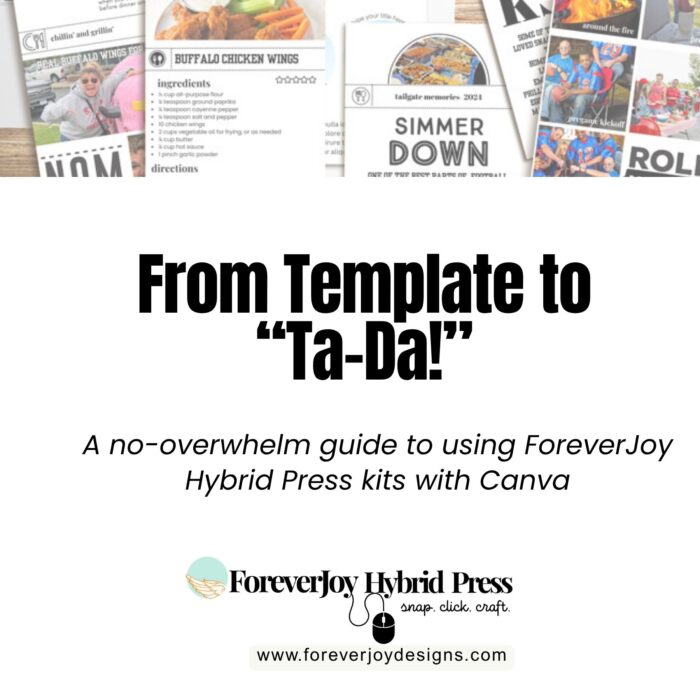
If you’ve got a ForeverJoy Canva Template open and a “now what?” expression on your face. Don’t worry, I’ve got you!
You’re officially in the right place. Whether you’re a total Canva newbie or just looking to make memory keeping easier, this is where the magic starts (minus the glue sticks and guilt trips).
This post will walk you through exactly how to use your template – from the moment you open it, to the moment you finish your first page. No overthinking. No overwhelm. Just clear steps, quick wins, and a layout you’ll actually love looking at.
Step 1: Open Your Template the Right Way
After your purchase, your template comes via email as a direct Canva link. When you click it:
You’ll be prompted to open the design in Canva.
Important: Make sure you’re logged into your Canva account before clicking. You’ll need a free Canva account to use the templates.
Once the file is open, do not edit the original—it’s your master copy.
Instead:
- Go to File > Make a copy
- Rename it something fun like “Weekend Pancakes Layout”
- Now you’re editing your personal copy—safe and sound
Step 2: Tour Your Toolkit
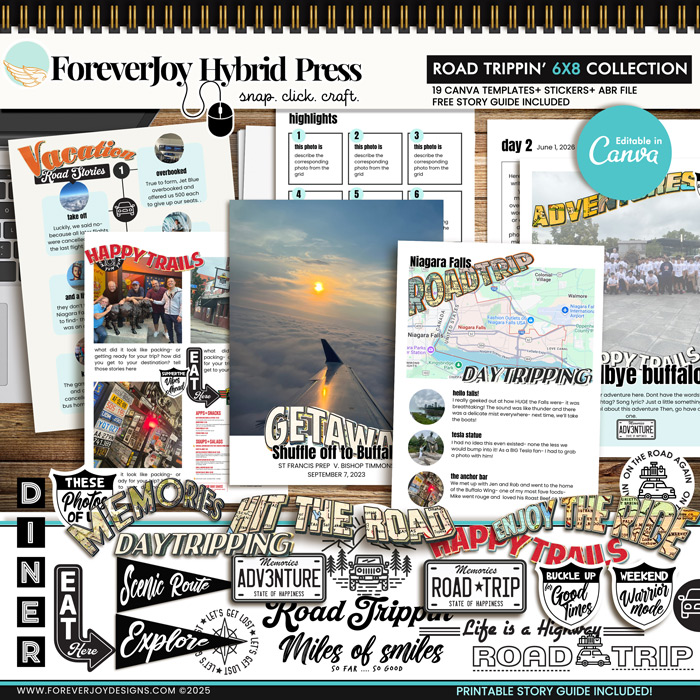
Inside each ForeverJoy Hybrid Press template kit, you’ll find:
- A themed template (or set of pages) with editable text, photo frames, and titles
- Digital papers you can drop into backgrounds or design with
- Coordinating “stickers” (graphic elements you can resize and place wherever you like)
- A Joy Jumper – a printable PDF that gives you story prompts and creative ideas to make your page more than just pretty
The templates are fully customizable, but they’re also plug-and-play. You don’t have to tweak the design – you can just swap in your photos and story and call it done. That’s the beauty of it.
Step 3: Drop in Your Photos
No need to overthink this. Just choose 3 to 5 photos that make you pause. (That’s it. Not 50. Just a few that tell one moment.)
Here’s how to add them:
- On desktop or the Canva app, go to Uploads and drag your images in
- Drag your photo over a photo frame and it will snap into place
- Double-click to reposition or zoom inside the frame
Pro tip: Don’t love the layout? Duplicate the page and play around with photo order. You’ll find your groove faster than you think.
Step 4: Use the Joy Jumper to Tell the Story
Here’s where it gets good.
The Joy Jumper is more than just a journaling prompt—it’s your story coach in PDF form. You’ll find:
- Photo ideas to spark creativity
- Story prompts that go beyond the obvious (“What made this moment worth remembering?”)
- Tips for deeper reflection, even in just a sentence or two
You don’t have to journal a novel. Just answer one prompt. Write one caption. Add one detail only you would know.
These tiny touches? They’re the gold. They’re what make your layout personal.
Bonus Tip: Keep your Joy Jumper open as you work or print it out and circle the prompts that speak to you first.
Step 5: Add Papers + Stickers
Want a pop of personality? Click into your kit’s extra elements:
- Background paper: Drag it in, right-click > “Send to back”
- Stickers: Copy/paste or drag them onto your layout. Resize, rotate, layer—it’s all creative play.
You don’t need to use everything- just enough to make the layout feel like yours.
Step 6: Finish Strong
Once your page looks good (or good enough – don’t get stuck in perfection mode):
- Download it as a PNG or PDF
- Print it at home or save it for a future photobook
- Share it in your private family album or just save it to admire later
Bonus: Want to build a full book? Duplicate the page, swap in new photos, and reuse the layout as a base. That’s a signature style in a fraction of the time.
You Did It. And You Can Do It Again.
You don’t need to make a whole album. You just need to tell one story. Then another. This is how real momentum starts—by taking 15 minutes and turning it into something that lasts.
And the more you use these templates, the easier it gets. Each one is built with your real life in mini -quick sessions, easy wins, and tools that actually help you scrap smarter.
So next time your camera roll fills up with another little moment worth remembering, open Canva. You’ve got everything you need to get it on the page.
CANVA (All Products)
No Photoshop? No problem. These drag-and-drop Canva scrapbook templates make creating easy anywhere – your craft room is as close as your Wi-Fi! SNAP your photos, CLICK your mouse and CRAFT your stories your way in no time!